Outline sections
Purpose

|
Outline tissue sections in an image automatically. The tool creates contours to outline sections that are visually distinct from the background. |
Procedure
Before you start
Open a single-plane (2D) image or image stack (3D/multiple plane).
-
When opening an image stack, check the box to Create sections for this stack to auto-populate the Serial Section Manager with a section for each plane in the image stack.
-
Follow the instructions below for the image type (single- or multiple-plane)
Outlining section in image stacks (3D images)
-
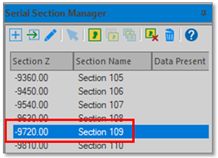
Outline a section: Select a section in the Serial Section Manager.
-
To navigate to a section, click its name. The section displayed is highlighted in blue.
-
To navigate to the previous (next) section, use PageUp (PageDown) on your keyboard.
-
-
 Go to the Pipelines ribbon and click Outline sections.
 -
Repeat these steps to outline other sections if desired.
Outlining sections in single-plane (2D) images
-
Go to the Pipeline ribbon and click Outline sections.
NeuroInfo automatically detects each tissue section in the image and generates contours that outline the sections.
-
If needed, you can edit the contours to more accurately outline the sections using contour editing tools.
When sections are spaced closely, more than one section may be outlined with a single contour. To split the contour:
-
Right click a point near the space between the sections and choose Split Contour at this Point.
-
Repeat at the other side of the contour. You will now have two "open" contours.
-
Right click one of the open contours and select Close selected contour. Repeat for the other open contour.
-
If needed, reshape the straight line that was drawn to close the contours.
-
-
(optional) Add sections to the Serial Section Manager by clicking
 New Section. All of the contours will be added to the Serial Section Manager.
See also Serial section manager, Selecting and editing contours (2D)