Colocalize markers
Purpose

|
Use this tool to combine two, three, or four markers into one marker for colocalization analyses. |
Procedure
-
Place markers in your image.
-
Open the Colocalize markers dialog window one of the following ways:
-
Right-click on the Markers Toolbar and choose Colocalize markers.
-
 Go to the ribbon, click Tools, then choose Colocalize markers from the drop-down menu.
-
-
In the Colocalize markers dialog window, choose the markers to colocalize and options for colocalization:
-
Check the box to Enable colocalization markers.
-
Combine these markers: From the top set of markers, select up to four existing markers to be replaced with a single colocalization marker.
-
Select one marker to show colocalization: From the lower set of markers, select one marker to represent the colocalized markers selected in the previous step.
-
Adjust settings for the marker replacement:
-
Colocalization distance determined by: Choose a method to set the maximum distance between colocalized markers
-
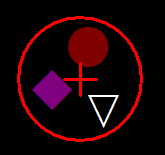
Circular cursor size: Place the cursor over a group of markers to be combined and scroll the mouse wheel so that the cursor-circle includes all the markers.
-
Custom distance: do one of the following:
-
Type the maximum colocalization distance in micrometers into the open box
-
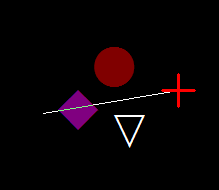
Click , place the cursor on the edge of a group of markers; click once, drag the mouse to draw a line to include all markers and click again to end the line. The measurement will be used as the distance.
-
-
-
Adjust other settings as needed (see the Reference section below).
-
-
Identify the colocalization markers: Click the button to either or
-
Click
-
Reference
-
Enable colocalization markers checkbox: Check the box to enable the colocalize markers function.
-
: Click a group of markers to replace them with a colocalization marker.
-
: Stereo Investigator software finds all of the placed markers that you indicated should be combined and replaces them with a colocalization marker.
-
Delete marker combination when placing a colocalization marker checkbox: If you don't select this option, the colocalization marker is displayed along with the original markers.
-
Apply colocalization markers to all sections checkbox: This is relevant when markers are selected for replacement using . Check the box to include all sections in the marker replacement. Leave the box unchecked to apply colocalization markers to the current section only.
-
Colocalization distance determined by:
-
Circular cursor size: cursor size defines the maximum colocalization distance
-
Custom distance: Click then place the cursor on the edge of a group of markers; click once, drag the mouse to draw a line to include all markers then click again to end the line. The measurement will be used as the distance.
-